18 Two-Monitor Desk Setup Ideas for Home Offices
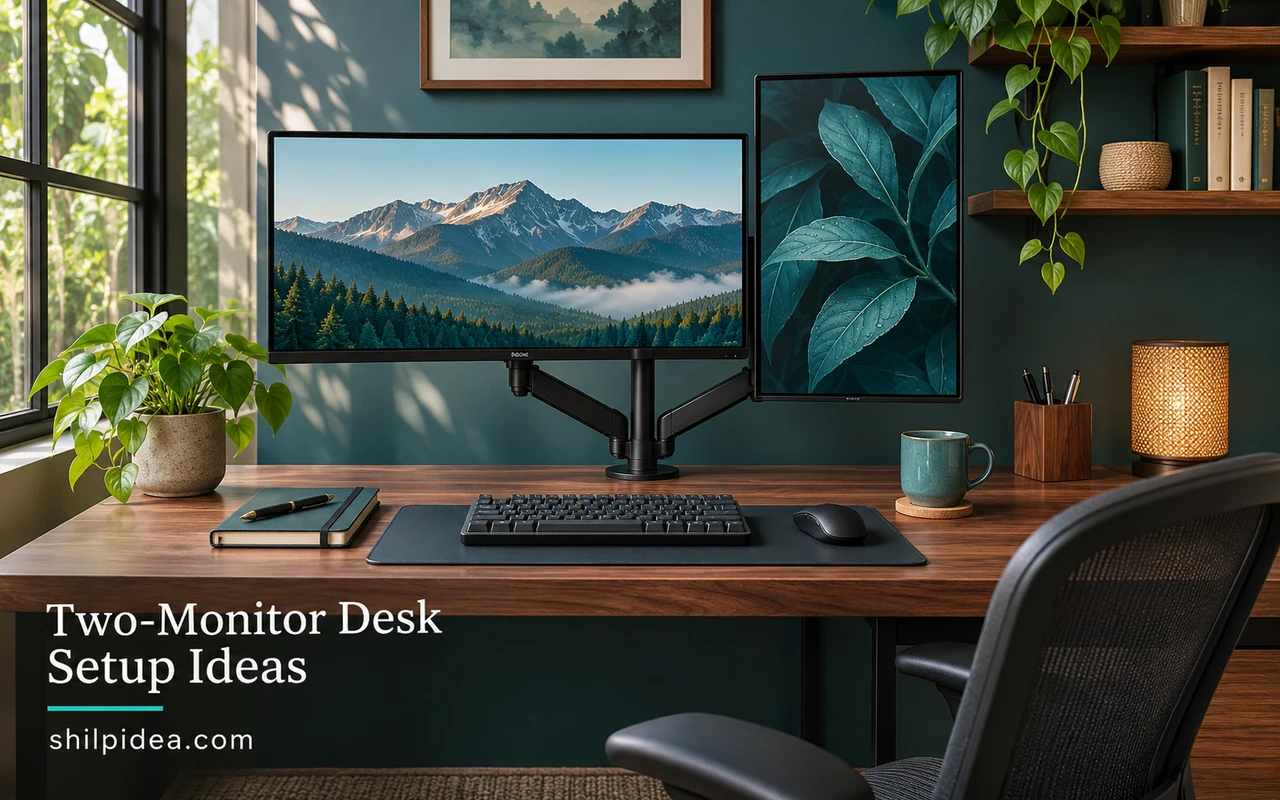
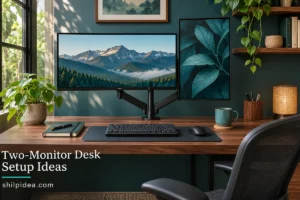
A two-monitor desk setup can make it easier to compare documents or keep a reference on screen. Start with the tasks you do most often, then give them the most convenient display positions.
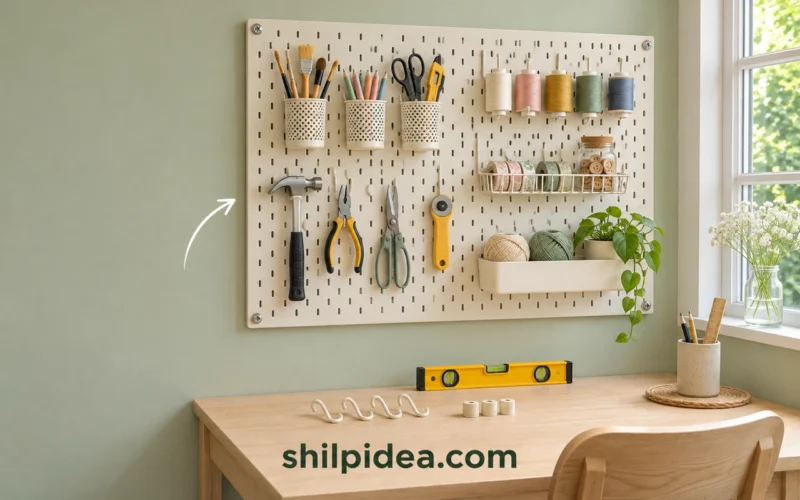
If you share a room with other activities, borrow a compact storage idea from this pegboard craft station. Clear space beside the keyboard for items you use repeatedly.
You can plan mounts and shelves with removable tape, much like planning a gallery wall. Find the right footprint before buying a stand or moving the desk.
1. A Primary Screen Directly Ahead

When you work mainly on one display, put it in front of your chair and angle the other inward for reference work. Try the layout with the windows you actually use rather than only checking how it looks on the desk. Move the secondary screen closer if you keep leaning toward it.
2. Matched Screens on a Shared Clamp

Two screens at a similar height make it easy to move a window across the middle. Start by lining up their active image areas, which can differ even if the cases look identical. Check the depth and strength of the desktop at the clamp and use the hardware specified by the mount maker.
3. A White Sit-Stand Desk
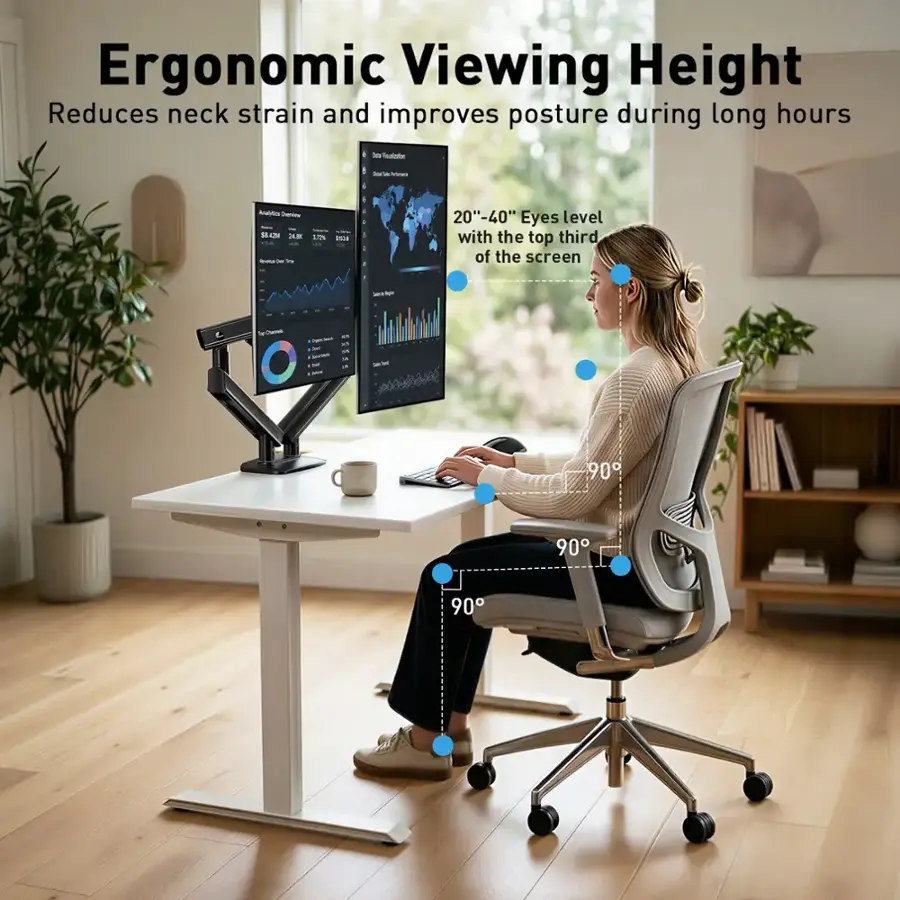
A pale sit-stand work surface helps a compact office feel open. Choose screen positions at both the low and high desk settings before you fasten cables underneath. Leave enough movement for power and video leads, and check they do not snag when the desk moves through its full range.
4. A Laptop Beside One External Display

A laptop can serve as the smaller monitor beside an external display. Put the heavier work on the larger screen and keep chat or a reference on the laptop. If the laptop is raised, use an external keyboard and mouse so you can type without reaching up to the built-in keys.
5. An Ultrawide with a Small Upper Display

A small upper monitor gives a wide main display room to occupy most of the desk. Assign it occasional tasks, such as checking a project board, so you don’t have to keep looking upward. Verify the arm fits both monitor weights and allows clearance for the curve of the larger screen.
6. Two Screens on a Vertical Stand

A central stacking stand can free space when there is no room to spread monitors sideways. Work from the lower screen and use the upper one for content you only glance at. Check the height with a temporary mockup first and use a stable mount designed for the sizes and weights involved.
7. A Stacked Pair on a Wood Desk

A stacked pair leaves the edges of a narrow table open for a lamp or writing area. Position frequently used controls on the lower display and use the upper display for static information. Check the depth of the table after accounting for the foot or clamp, especially on a shallow desk.
8. A Symmetrical Sit-Stand Pair
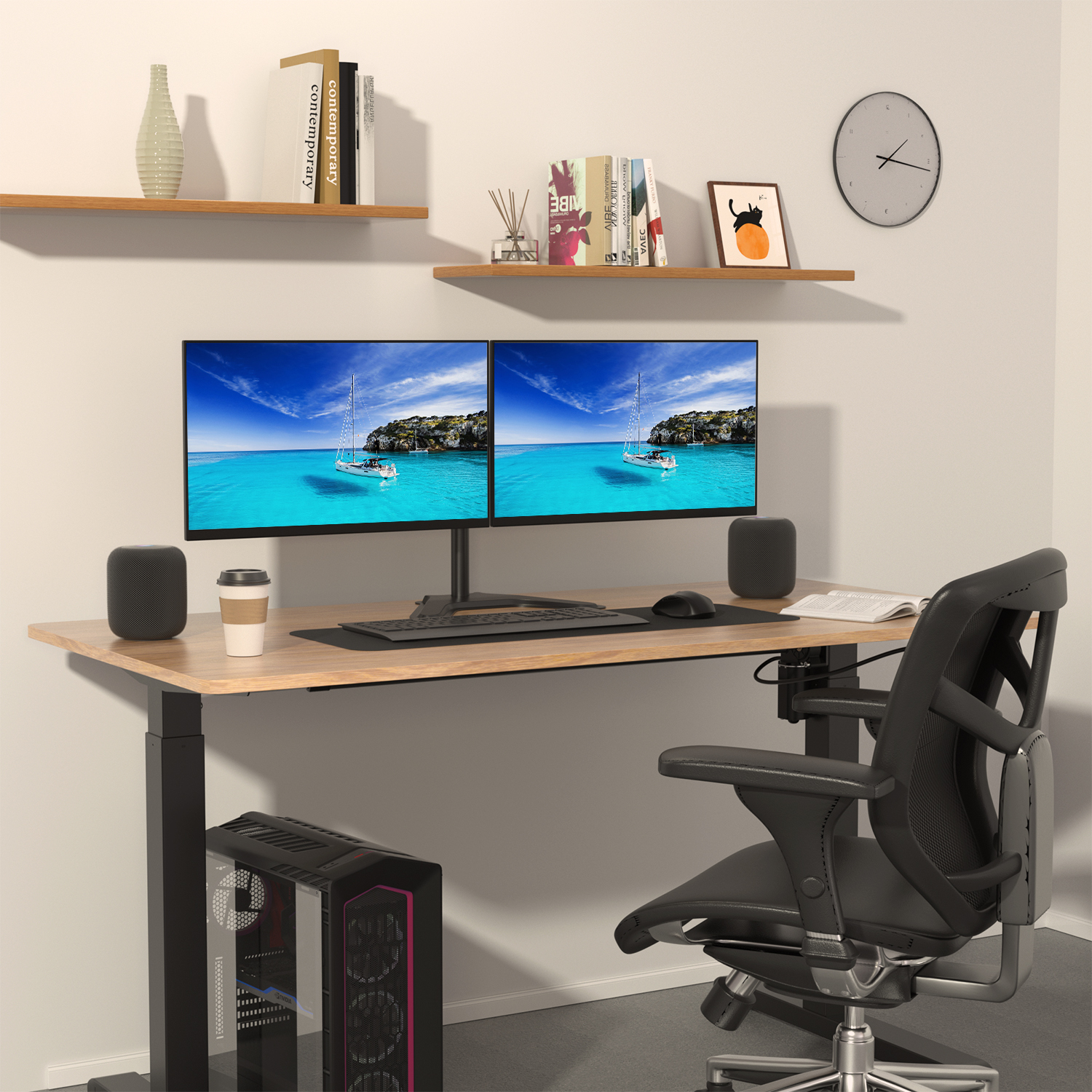
A balanced pair works well for tasks you split fairly evenly, such as comparing versions of an image or keeping related documents visible. Put the join where you can sit naturally and keep the outer edges within comfortable viewing range. Lower both screens if the top edge feels too high when seated.
9. More Depth with Gas-Spring Arms

An arm can lift a monitor off the desk and make room for a notebook beneath it. Test the available space behind the desk, since the arms need room to fold back. Check that gas springs are rated for the monitor weight before depending on them to hold a fixed position.
10. A Clear Keyboard and Writing Area
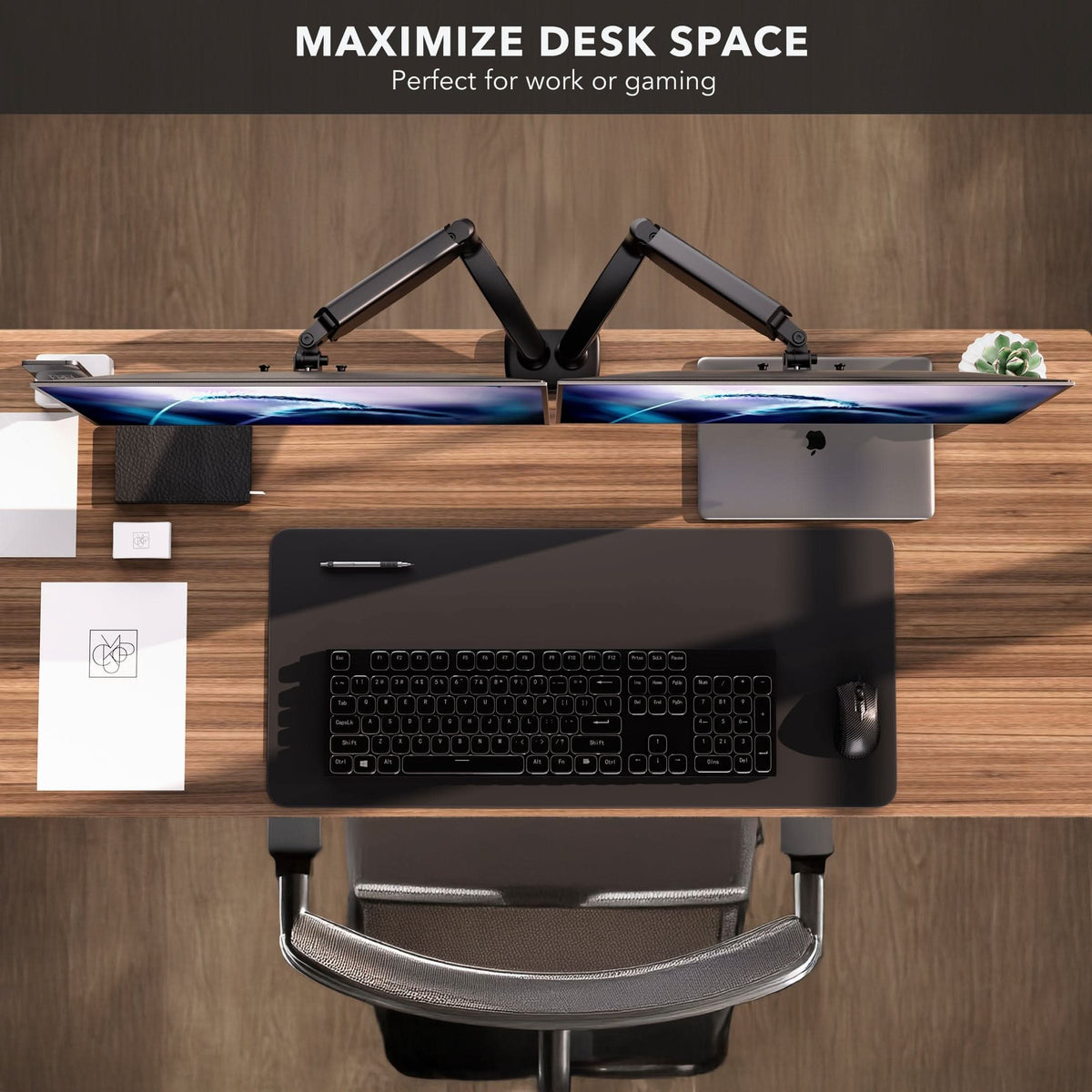
Raise the two screens enough to leave a clear center zone for a keyboard and occasionally a sheet of paper. Set the height around your seating position first. Avoid stacking objects under the screens high enough to block their vents or get in the way when you adjust the mount.
11. A Desk for Work and Play

One practical setup assigns a display to work and the second to games or media. Use settings that make each easy to read and keep the one you spend most time on closest to center. A place to park the headset can keep the keyboard clear at the end of the workday.
12. Two Independent Arms
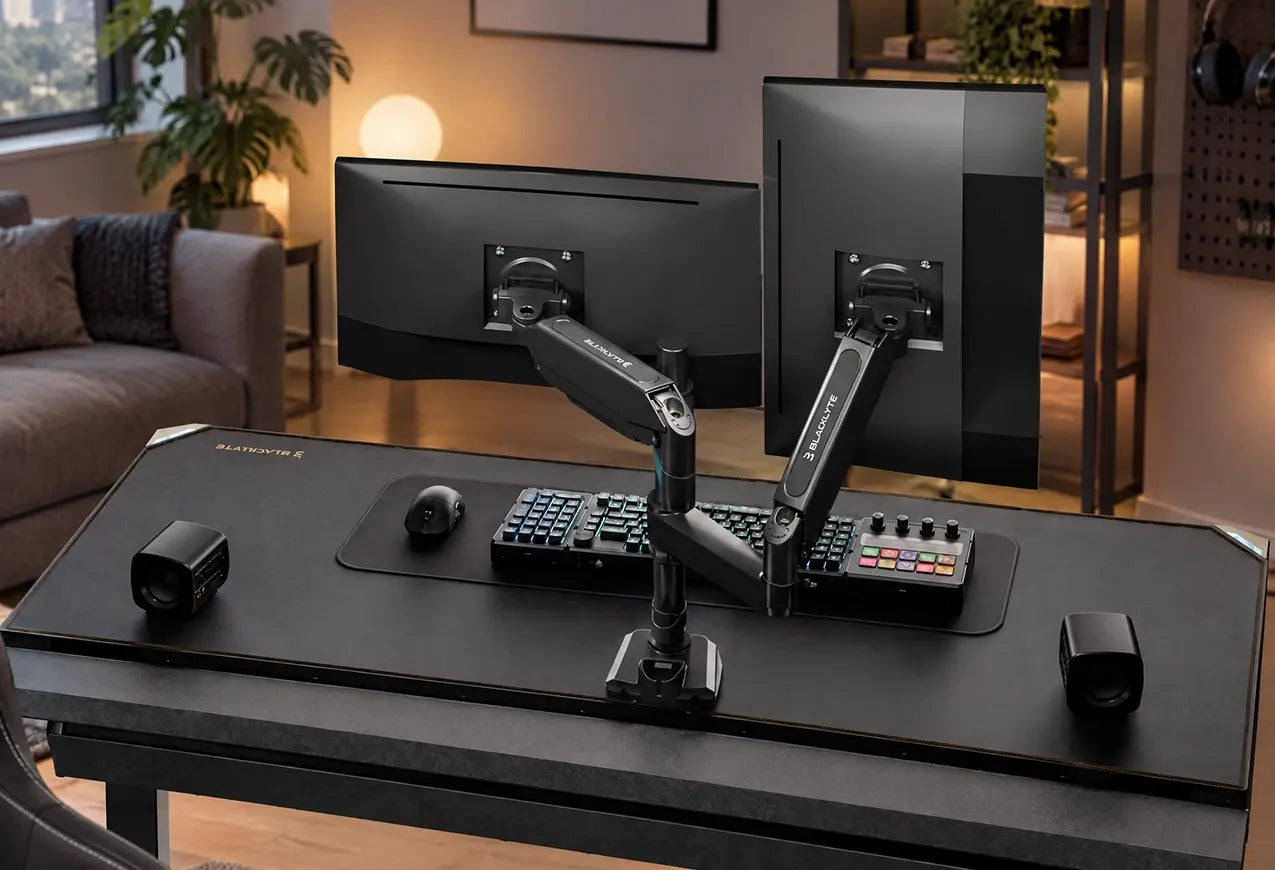
Separate arms can be useful when the screens have different sizes or you change the arrangement regularly. Set the clamps far enough apart that the elbows don’t collide. Route the cables after you decide which display, if any, needs to rotate between portrait and landscape during the day.
13. Matching Floating Screens Over a Light Desk
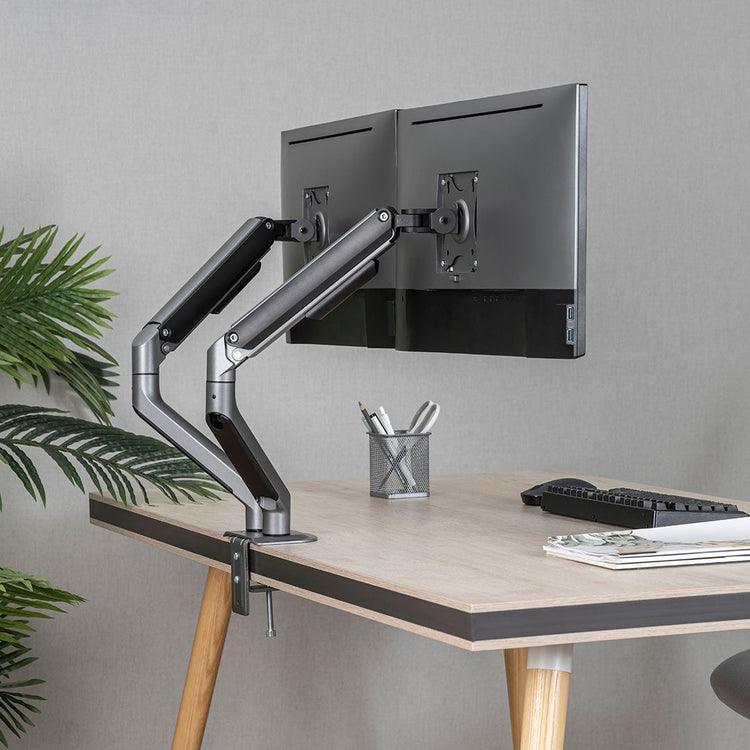
A pair of floating screens gives a light wood desk a simple horizontal line. Use a smaller desk mat to define where the keyboard goes and leave the sides clear for paper. Test arm movement with the screens turned slightly inward before choosing how close to place the desk to the wall.
14. A Wall-Mounted Pair

A wall mount can free the entire desk for writing or equipment, which is useful when the surface is too thin for a clamp. Check the wall structure and use the manufacturer’s mounting instructions. Decide on seating and desk height first, because a fixed bracket is harder to relocate later.
15. A Wire Tray Under the Desktop

An under-desk tray gathers the cords that would otherwise hang behind a two-screen setup. Sort the leads by function and label the ends you are likely to disconnect. Keep the tray accessible and leave a service loop on anything that moves with a screen or an adjustable desk.
16. A Shelf Beneath Both Monitors

A long riser can create a useful line of shallow storage beneath stands without clamping to the desk. Measure the two stand feet, then check the shelf’s rated load and depth. Leave the surface below free for small items that won’t block airflow or interfere with monitor controls.
17. A Docked Laptop with Twin Displays
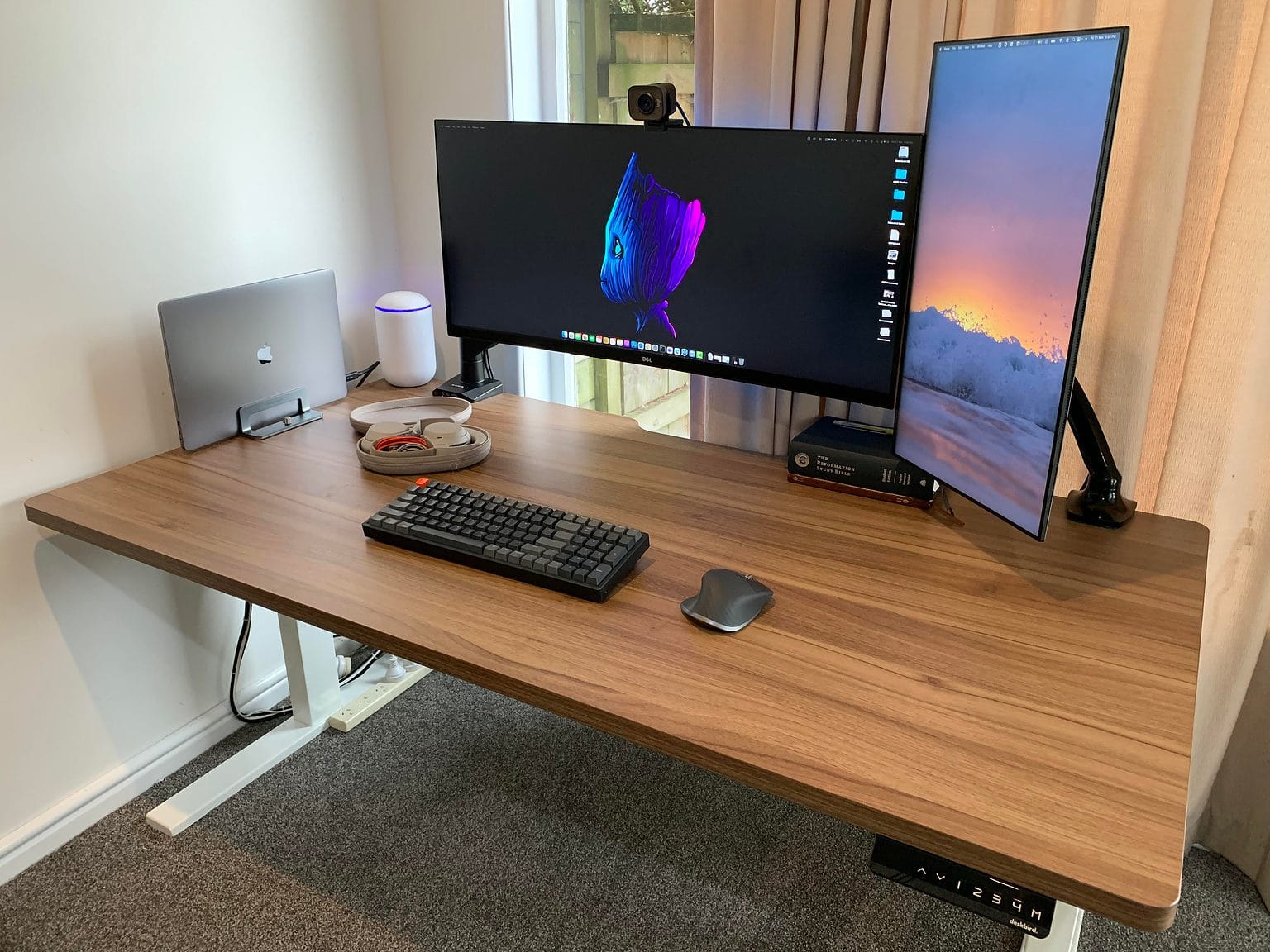
If your laptop supports two external displays, a dock and a vertical stand can free up the center of the desk. Check the laptop’s actual multi-display support before buying the dock, since compatibility varies. Keep the power button and any ports you unplug frequently within easy reach.
18. A Wide Screen with a Portrait Companion

Pair an ultrawide main display with a portrait screen for long documents or code. Move the portrait screen to the side you reference naturally and align the portion you read most often with your usual line of sight. Use swivel clearance rather than forcing the panel against the wall.
Make Room for Work Around Your Monitors
Once your screens are in place, check whether you still have room to write, reach your charging cables, and set down a notebook. A laptop stand can give a second screen a useful spot, while a pegboard keeps headphones and small tools off the desk. The projects below help you make the most of the space around your monitors.
- Build a Compact Pegboard Station
- Make a PVC Laptop Stand
- Organize Pens with Popsicle Sticks
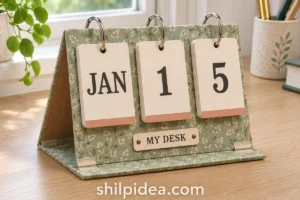
- Make a Chipboard Desk Calendar
- Make Desk Organizers from Bottles
What would you keep open on your second screen? Share your monitor layout in the comments and tell us what you’d move to free up desk space. If you’ve tried a stacked setup, let us know which tasks it suited best.




























0 Comments